Introduction
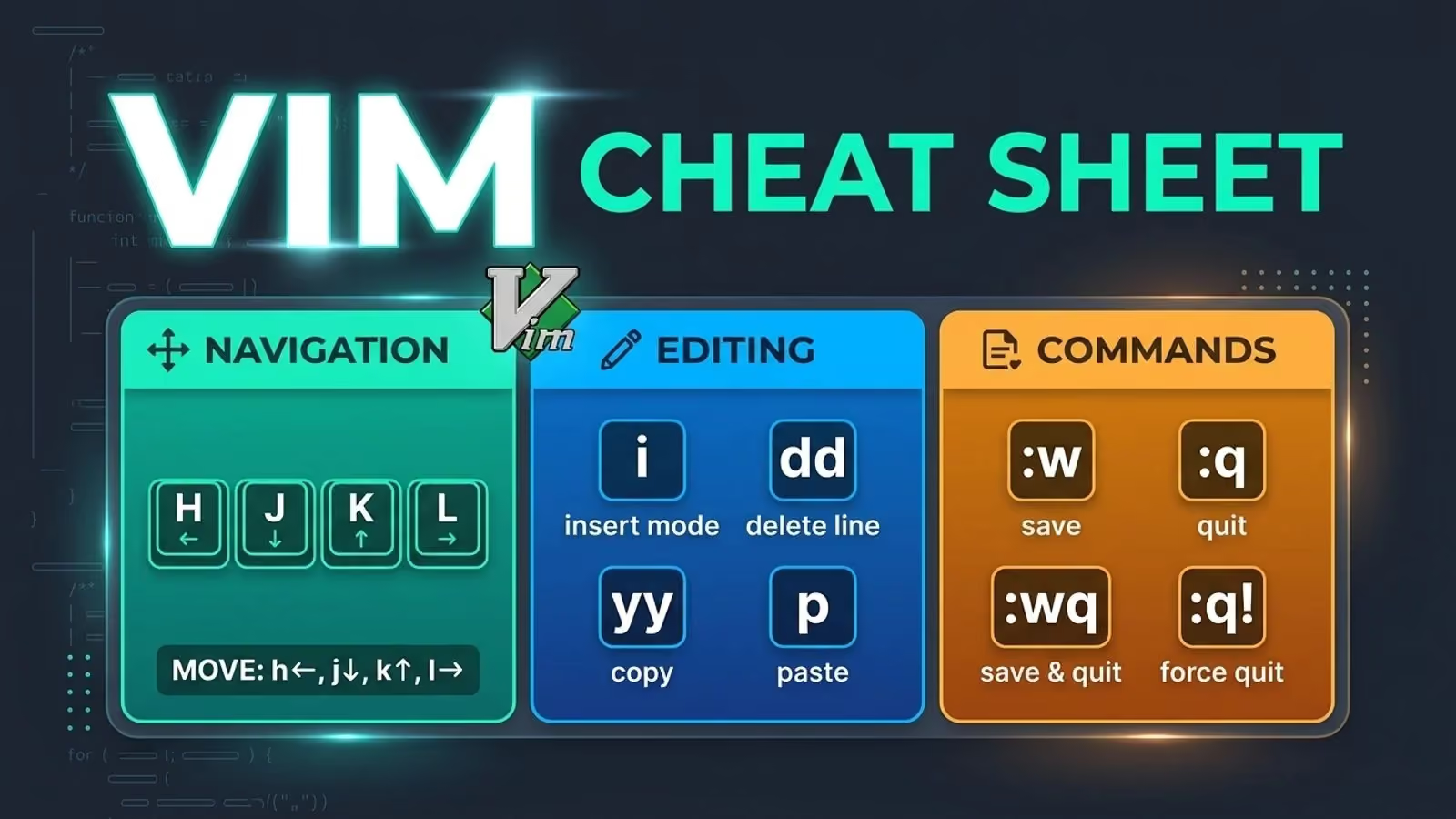
Many developers and power users choose Vim as their editor. Vim is a “modal” text editor based on vi, which Bill Joy created in the 1970s for UNIX. It keeps vi’s key bindings but adds more features and flexibility.
So what does “modal” mean? In most text editors, typing letters or numbers just adds those characters to your document, unless you hold down a control key. In Vim, the mode you are in decides if those keys type characters or move the cursor around.
If you want to learn more, take a look at this introduction to Vim guide.
Disclaimer: This cheat sheet is based on personal experience and various online tutorials. It is not official advice. For more details, see:
Table of Contents
- Global
- Command structure
- Python mapping
- Page scrolls
- Macro
- Insert mode - inserting/appending text
- Editing
- Cut and paste
- Marking text (visual mode)
- Visual commands
- Search and replace
- Search in multiple files
- Exiting
- Working with multiple files
- Tabs
- Tips
Global
:help keyword  # open help for a keyword
:o file        # open a file
:saveas file   # save the file as
:close         # close the current pane
:sh            # go to the terminal that started Vim (type exit to return to Vim)
:terminal      # open a new terminal in a horizontal split
.              # repeat the last command
u              # undo
^r             # redo
Command structure
Most Vim commands follow this general pattern:
[count] {operator} {[count] motion|text object}Operators that need motions, text objects, or other commands
v          # visually select
V          # visually select the entire line
^v         # visually select a block
y          # yank
d          # delete (cut)
c          # change
gu         # change to lowercase
gU         # change to uppercase
g~         # switch case
Text objects
{special motion}{object}# Special motion
a # all (with whitespace)
i # in (without whitespace)
# Object
w # words
s # sentences
p # paragraphs
t # tags
'|"|` # quote
[]|{}|()|<> # block
b # for () block
B # for {} blockMotions
Cursor movements
h          # move the cursor left
j          # move the cursor down
k          # move the cursor up
l          # move the cursor right
H          # move the cursor to the top of the screen
M          # move the cursor to the middle of the screen
L          # move the cursor to the bottom of the screen
Word movements
w          # jump forwards to the start of a word
W          # jump forwards to the start of a word (words can contain punctuation)
e          # jump forwards to the end of a word
E          # jump forwards to the end of a word (words can contain punctuation)
b          # jump backward to the start of a word
B          # jump backward to the start of a word (words can contain punctuation)
ge         # jump backward to the end of a word
gE         # jump backward to the end of a word (words can contain punctuation)
Line movements
0          # jump to the start of the line
^          # jump to the first non-blank character of the line (Shift + 6)
$          # jump to the end of the line
g_         # jump to the last non-blank character of the line
Block movements
%          # jump to the next parenthesis or bracket
}          # jump to the next paragraph (or function/block, when editing code)
{          # jump to the previous paragraph (or function/block, when editing code)
(          # jump forward one sentence
)          # jump backward one sentence
[(         # jump to the previous available parenthesis
])         # jump to the next available parenthesis
[{         # jump to the previous available bracket
]}         # jump to the next available bracket
Other movements
gg          # go to the first line of the document
<number>gg  # go to the line given by the number
G           # go to the last line of the document
<number>G   # go to the line given by the number

gd          # go to the local declaration
gD          # go to the global declaration
g*          # search for a word that contains the word under the cursor
*           # search for the word under the cursor
g#          # g*, but backwards
#           # *, but backwards
Marker movements
mx         # mark 'x' at the current cursor position

'x         # jump to the beginning of the line of mark 'x'
`x         # jump to the cursor position of mark 'x'
Undo
''         # return to the line where the cursor was before the latest jump (two single quotes)
``         # return to the cursor position before the latest jump, i.e. undo the jump (two backticks)
`.         # jump to the cursor location of the last-changed line
'.         # jump to the beginning of the last-changed line

^o         # undo the last jump
Characters
{motion}{character}t # til forward
T # til backward
f # find forward
F # find backward
; # repeat t, T, f, or F in the same direction
, # repeat t, T, f, or F in the other directionPython mapping
Vim also provides special movement mappings for navigating Python code:
]] Jump forward to begin of next toplevel
[[ Jump backward to begin of current toplevel (if already there, previous toplevel)
]m Jump forward to begin of next method/scope
[m Jump backward to begin of previous method/scope

][ Jump forward to end of current toplevel
[] Jump backward to end of previous toplevel
]M Jump forward to end of current method/scope
[M Jump backward to end of previous method/scope
Example
class Mapping:                              # [[[[
    def __init__(self, iterable):
        pass

    def update(self, iterable):
        pass

    __update = update                       # []

class Reverse:                              # [[ or [m[m
    def __init__(self, data):               # [m
        self.data = data
        self.index = len(data)              # [M

    def __iter__(self):                     # <--- CURSOR
        return self                         # ]M

    def __next__(self):                     # ]m
        if self.index == 0:
            raise StopIteration
        self.index = self.index - 1
        return self.data[self.index]        # ][

class MappingSubclass(Mapping):             # ]] or ]m]m

    def update(self, keys, values):
        pass
Page scrolls
^e         # scroll the window down
^y         # scroll the window up
^f         # scroll down one page (forward scroll)
^b         # scroll up one page (backward scroll)
^d         # scroll down 1/2 page
^u         # scroll up 1/2 page
zt         # scroll to bring the cursor to the top of the screen
zz         # scroll to bring the cursor to the center of the screen
zb         # scroll to bring the cursor to the bottom of the screen
Macro
q{register}  # start recording
--do commands to record--
q             # stop recording

@{register}  # play the recording in the register
@@            # play the previously played register

:reg          # see the values of every register
Insert mode - inserting/appending text
i        # insert before the cursor
I        # insert at the beginning of the line
a        # insert (append) after the cursor
A        # insert (append) at the end of the line
o        # append (open) a new line below the current line
O        # append (open) a new line above the current line
Esc      # go to normal mode
^o       # temporarily go to normal mode from insert mode
^r{reg}  # print the value of the register {reg}
Editing
~        # switch the case of a character
r        # replace a single character
J        # join the line below to the current one
cc       # change (replace) the entire line
C        # change to the end of the line (same as c$)
s        # delete a character and substitute text
S        # delete a line and substitute text (same as cc)
>>       # shift [number] of lines to the right
<<       # shift [number] of lines to the left
Cut and paste
yy|Y        # yank (copy) [number] of lines
p           # put (paste) the clipboard after the cursor
P           # put (paste) the clipboard before the cursor
dd          # delete (cut) [number] of lines
D           # delete (cut) to the end of the line (same as d$)
x           # delete (cut) a character
Marking text (visual mode)
v        # start visual mode, mark lines, then run a command (like y to yank)
V        # start linewise visual mode
^v       # start visual block mode
o        # move to the other end of the marked area
O        # move to the other corner of the block
Esc      # go to normal mode
Visual commands
Visual block mode only
I        # insert at the beginning of the selected block
A        # insert (append) at the end of the selected block
Esc      # repeat the changes for all lines
For all visual selections
>       # shift the text right [number] of times
<       # shift the text left [number] of times
Most editing and cut or paste commands also work here, but they only affect the text you have selected.
Search and replace
/pattern       # search for pattern
?pattern       # search backward for pattern
\vpattern      # 'very magic' pattern: non-alphanumeric characters are interpreted as special regex symbols (no escaping needed)
n              # repeat the search in the same direction
N              # repeat the search in the opposite direction
:%s/old/new/g  # replace all old with new throughout the file
:%s/old/new/gc # replace all old with new throughout the file, with confirmation
:noh           # remove the highlighting of search matches
Search in multiple files
:vimgrep /pattern/ {file} # search for a pattern in multiple files
:cn                       # jump to the next match
:cp                       # jump to the previous match
:copen                    # open a window containing the list of matches
Exiting
:w              # write (save) the file, but don't exit
:w !sudo tee %  # write out the current file using sudo
:w file.log     # write the text to file.log
:wq or :x or ZZ # write (save) and quit
:q              # quit (fails if there are unsaved changes)
:q! or ZQ       # quit and throw away unsaved changes
Working with multiple files
Commands
:Ex           # open the file explorer
:e file       # edit a file in a new buffer
:bnext | :bn  # go to the next buffer
:bprev | :bp  # go to the previous buffer
:bd           # delete a buffer (close a file)
:ls           # list all open buffers

:[num]sp [file]      # open a file in a new buffer and a horizontal split window with height=num
:[num]vs [file]      # open a file in a new buffer and a vertical split window with width=num
Splitting and movements
^ws     # split the window
^wv     # split the window vertically
^wq     # quit a window
[N]^wx  # swap the position of this window with the previous (or Nth) window

^ww     # switch windows
^wh     # move the cursor to the left window (vertical split)
^wl     # move the cursor to the right window (vertical split)
^wj     # move the cursor to the window below (horizontal split)
^wk     # move the cursor to the window above (horizontal split)
Change window size
^W  +|-      # increase/decrease the height [number] of units (don't type a space)
^W  >|<      # increase/decrease the width [number] of units (don't type a space)
[num]^W_     # set the height to the number of units (max height if zero)
[num]^W|     # set the width to the number of units (max width if zero)
^W=          # equalize the width and height of all windows
Tabs
:tabnew or :tabnew file # open a file in a new tab
^wT                     # move the current split window into its own tab
gt or :tabnext or :tabn # move to the next tab
gT or :tabprev or :tabp # move to the previous tab
<number>gt              # move to tab <number>
:tabmove <number>       # move the current tab to the <number>th position (indexed from 0)
:tabclose or :tabc      # close the current tab and all its windows
:tabonly or :tabo       # close all tabs except for the current one
:tabdo command          # run a command on all tabs (e.g., :tabdo q closes all open tabs)
Tips
Why Esc?
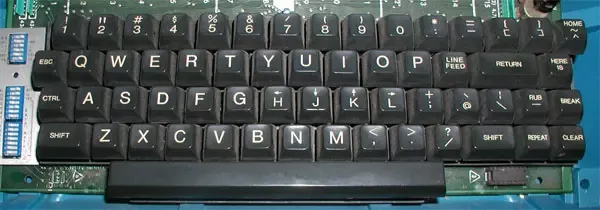
The vi editor was first created for the ADM-3A terminal, which had the Escape key where the Tab key is on most keyboards today. (ref)